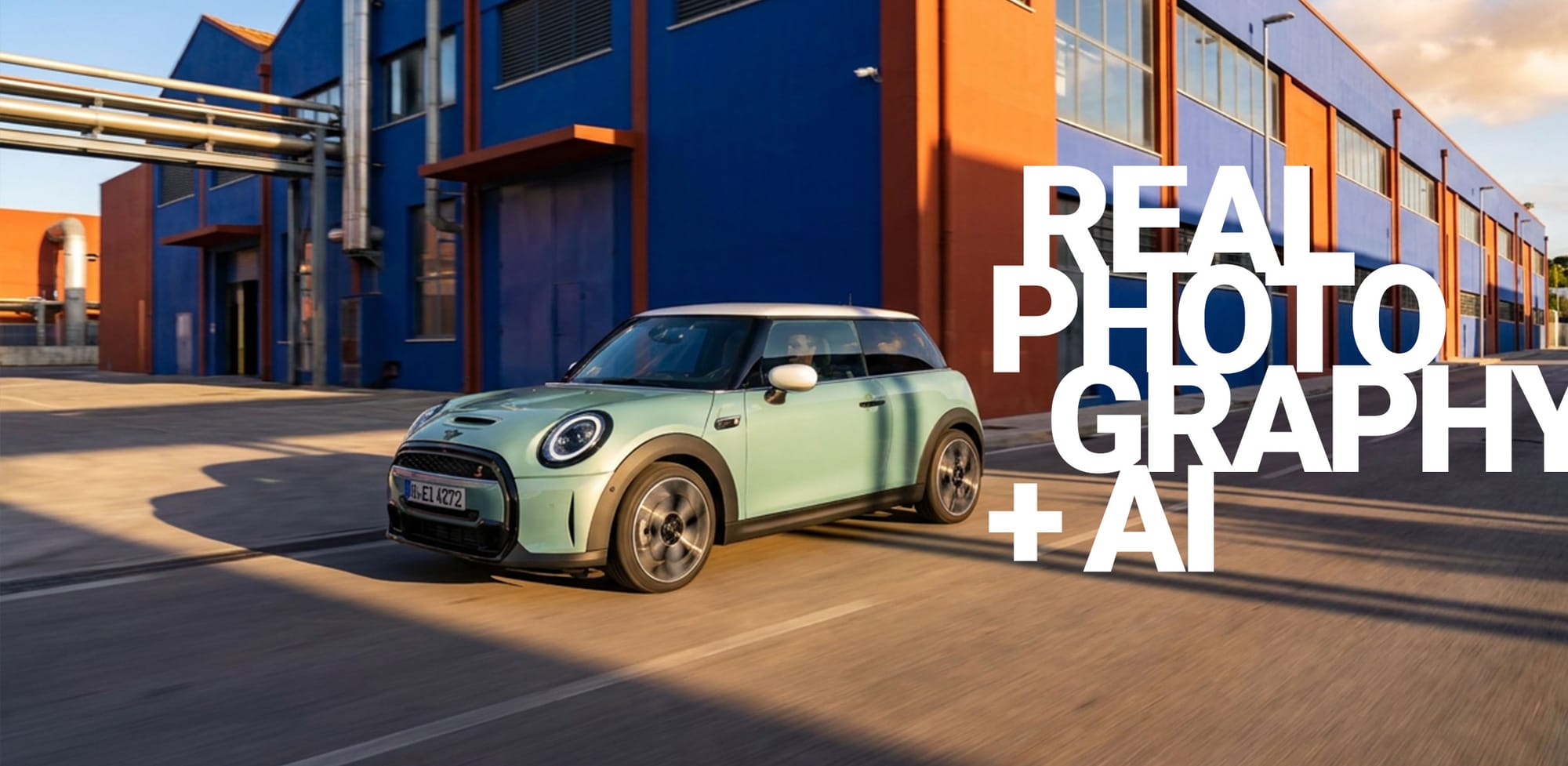
How to Use "Create Concepts Flow": A Step-by-Step Guide

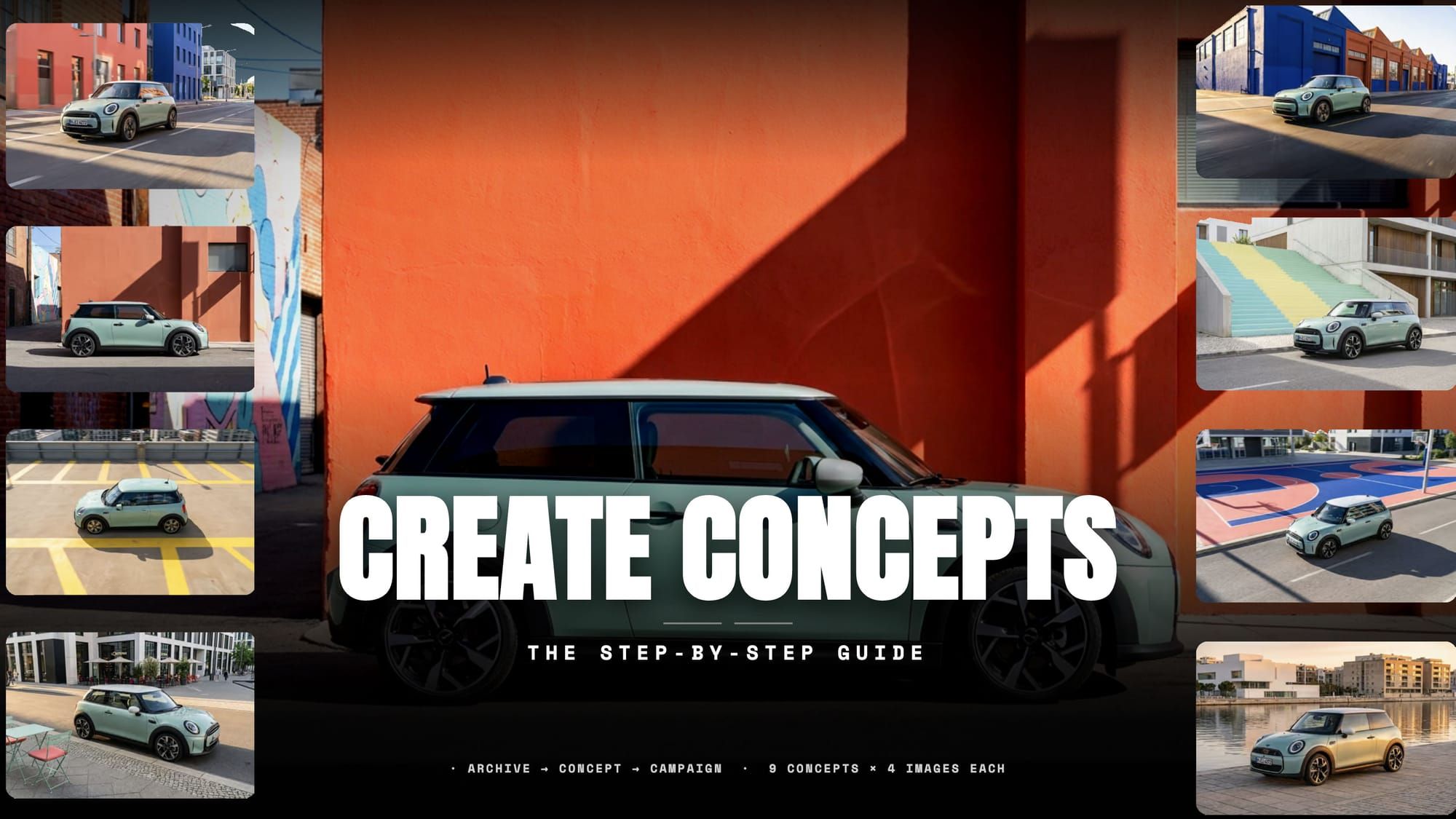
Most creative briefs don't start with a finished idea. They start with a feeling.
A color palette you saw somewhere. A city you want to shoot in. A mood that's hard to put into words but immediately recognizable when you see it.
Create Concepts is built for exactly that moment: turning a loose creative direction into a full set of visual concepts, fast. But to get the best results, the process matters. This guide walks through every step, using a real example: a fictitious urban campaign for the MINI.
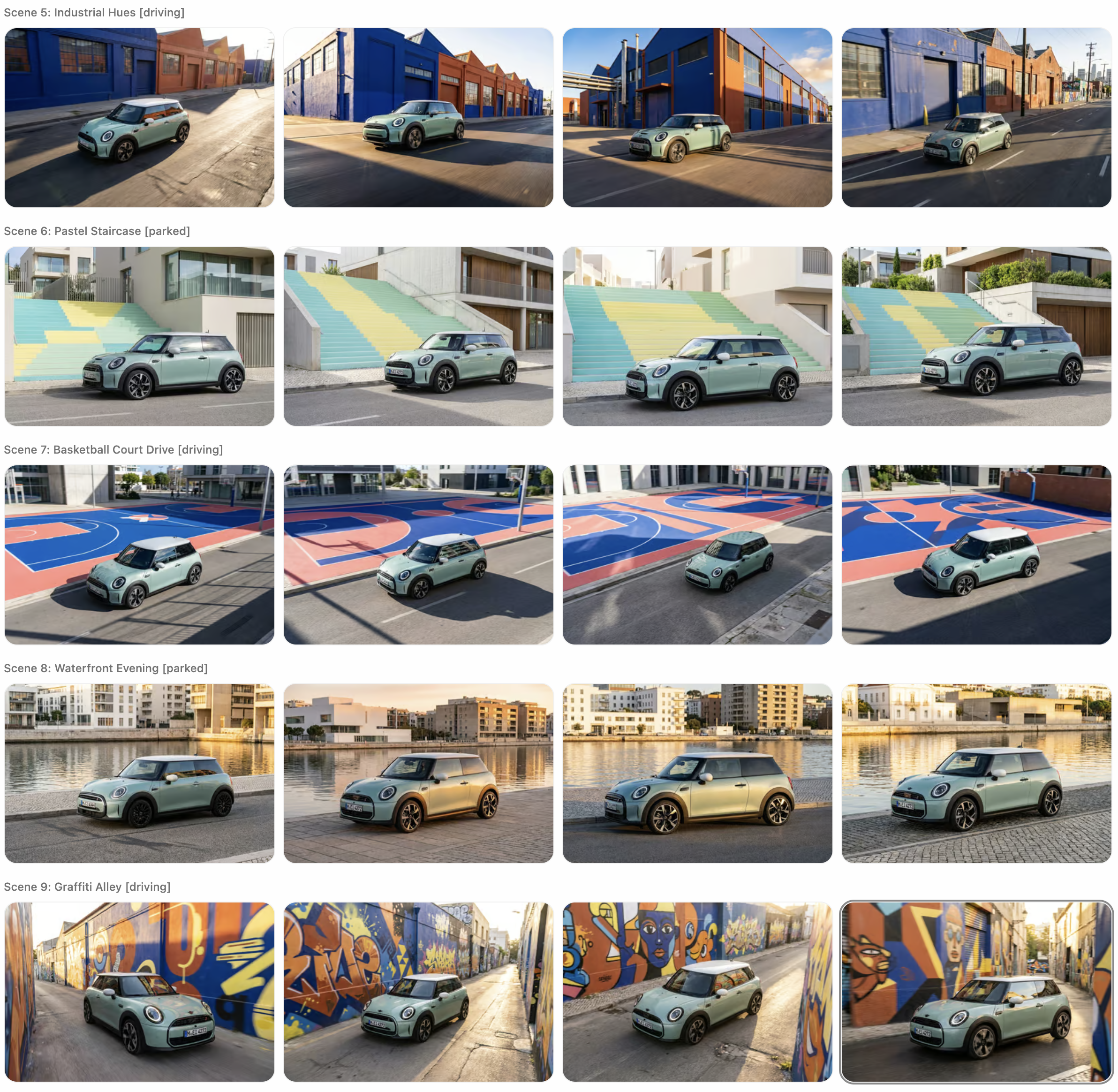
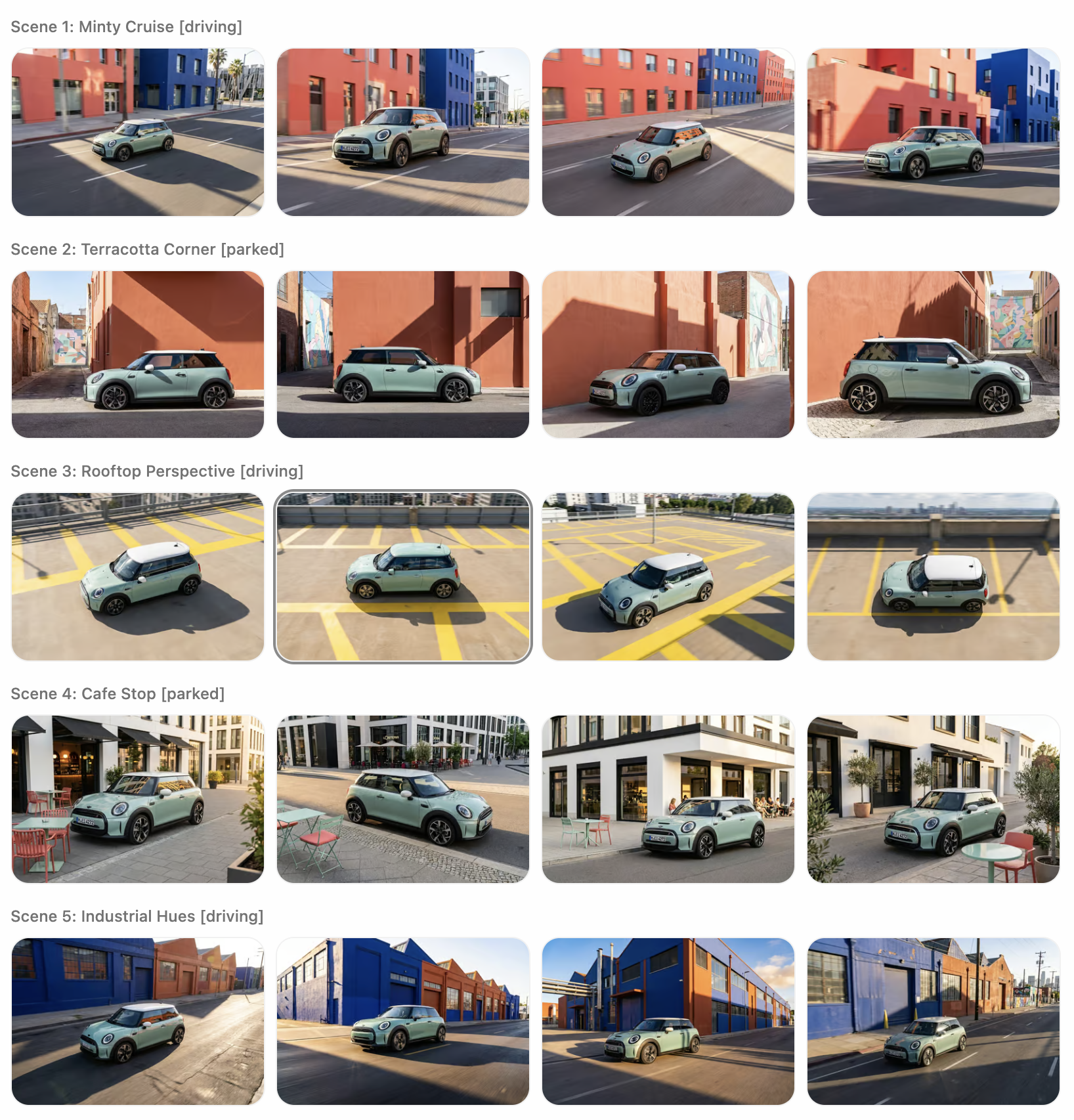
AI generated images with maground.com
What You Need Before You Start
Three things:
- Mood references: images that capture the look, feel, or color direction you're going for
- A vehicle image: an existing marketing photo or rendering of the car
- A prompt: a written description of your visual concept
That's it. Let's go through each one.
Step 1: Collect Your Mood References
You can upload up to 10 reference images. These work as a visual brief, they help Create Concepts understand what you're going for before you write a single word.
Good references can be anything:
- Key visuals from existing campaigns (your own brand or others)
- Architecture and landscape photography
- Images with a specific color palette, light quality, or graphic style
- Street photography, editorial images, art direction references
For the MINI example, we went to the official MINI website and pulled images from a current campaign. The car's signature mint green body, the colorful urban architecture, the graphic light and shadow, all of this is already visible in the brand's own imagery. Those became our references.
The goal at this stage: give the system enough visual context so it understands your aesthetic direction without you having to explain everything in words.
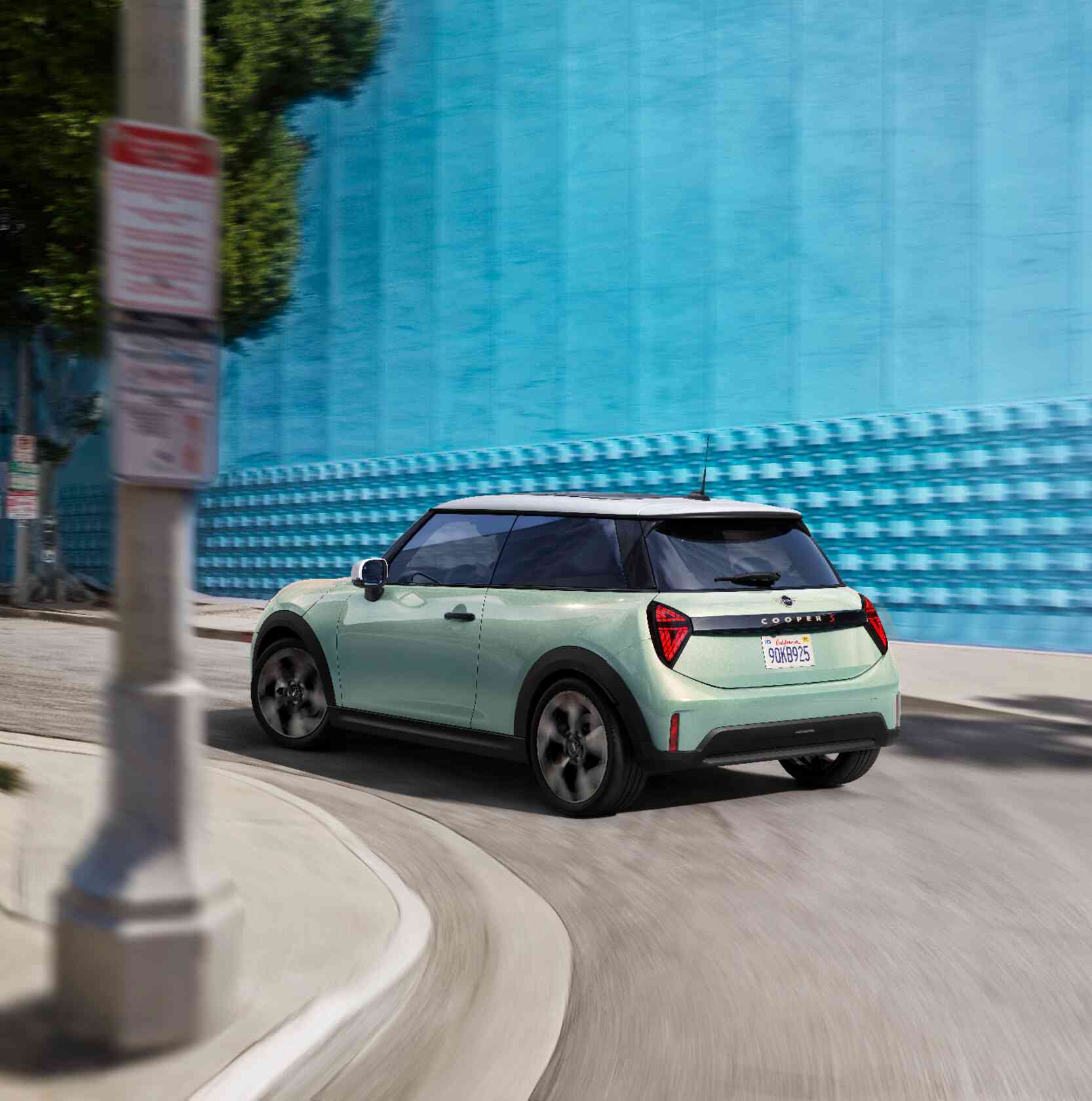
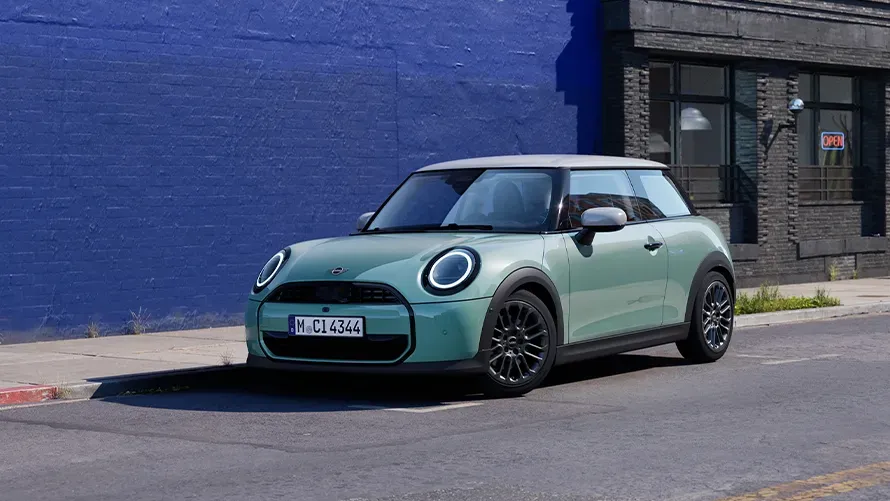
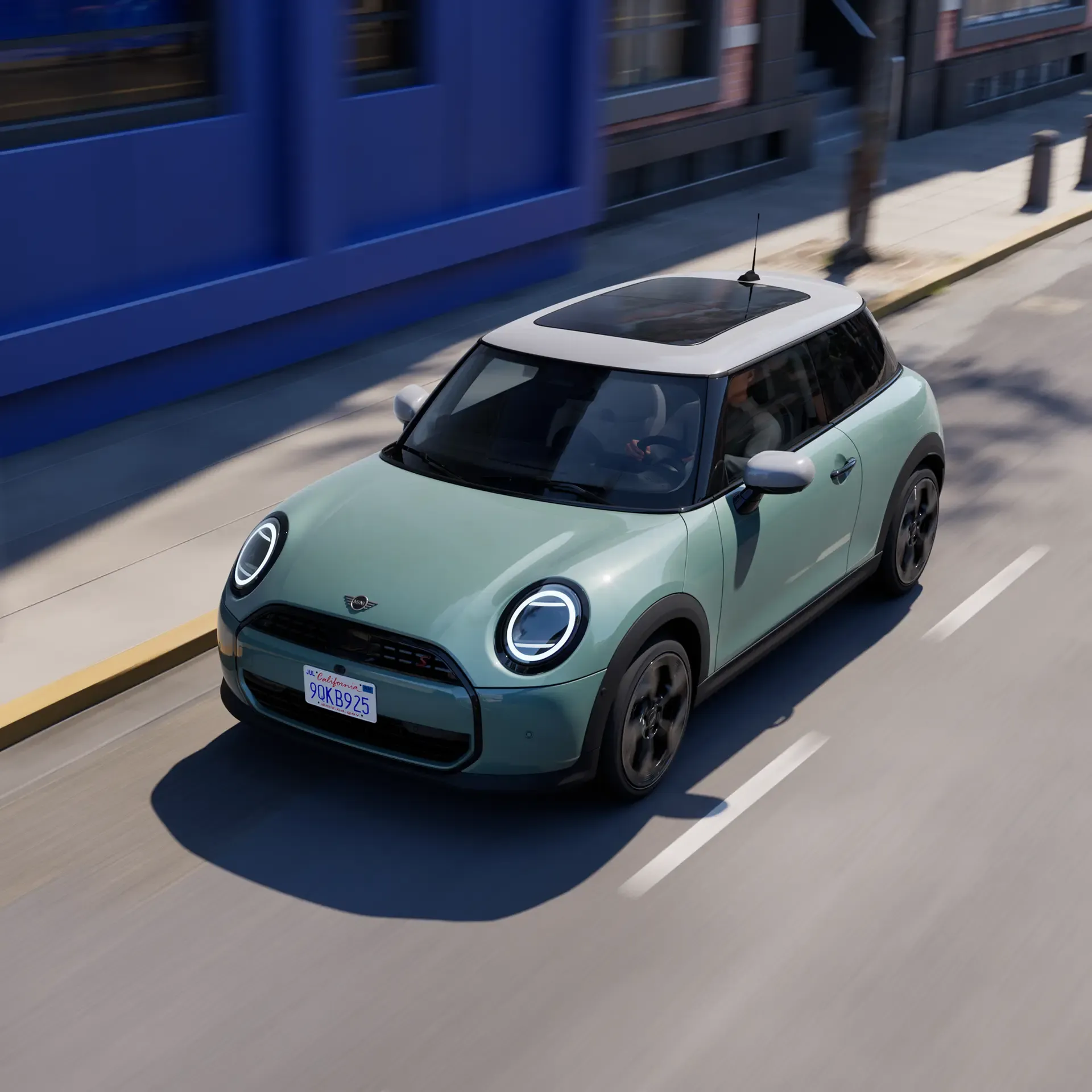
Official Marketing image from Mini Website Copyright @ Mini
Step 2: Select Your Vehicle Image
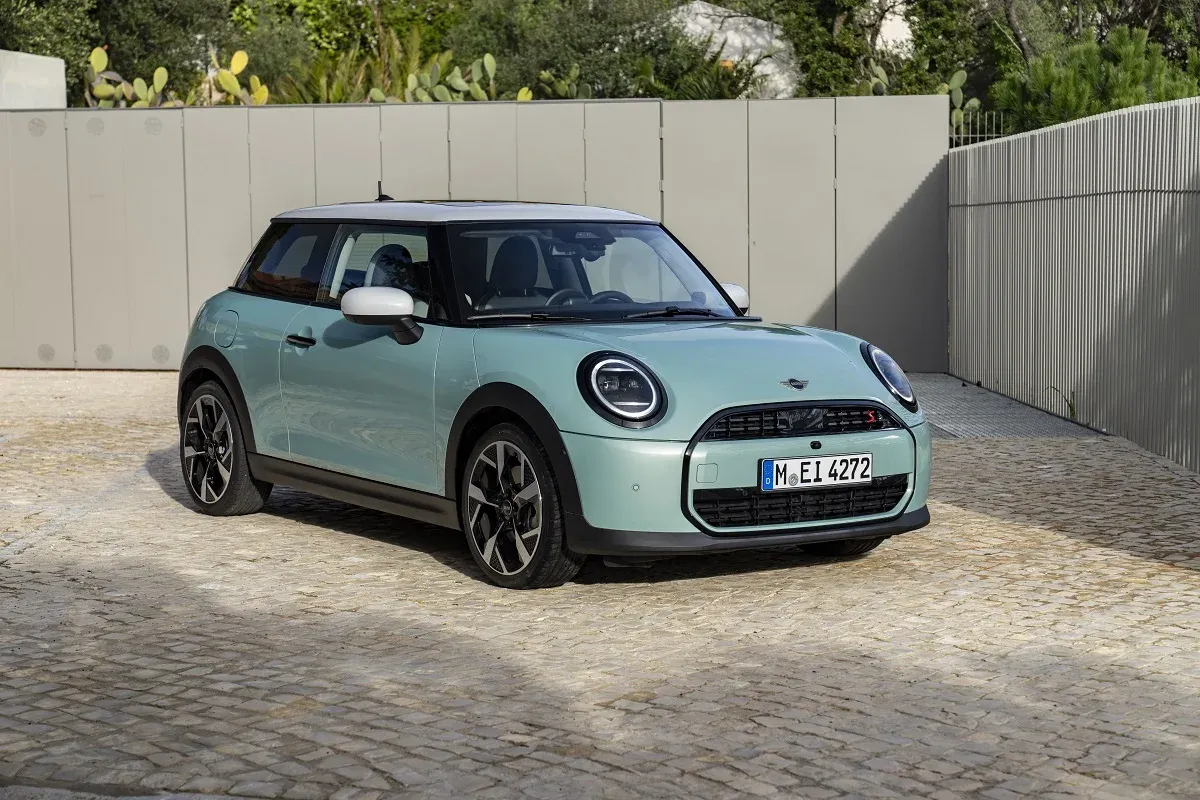
Create Concepts works best with a clean, neutrally lit photo or rendering of the car — ideally a side or 3/4 view with minimal background distraction.
Why neutral light? Because the workflow needs to read the vehicle clearly in order to integrate it convincingly into new environments. Dramatic studio lighting or heavy processing can make this harder.
For the MINI, we used existing campaign photos: soft daylight, clean body color, white roof clearly visible. The car's personality comes through in the shape and color. That's enough.
Step 3: Build Your Prompt
This is the most important step, and also where most users get stuck.
A good prompt isn't just a location name or a mood word. It's a short creative direction that tells Create Concepts what kind of visual world you want to build: the environments, the light, the compositions, the feeling.
You don't have to write it from scratch. The easiest approach: open any AI chat tool (Claude, ChatGPT, or similar), upload your reference images, and give it a simple instruction.
Here's the exact prompt we used in ChatGPT:
"Create a concept for the MINI enclosed. Urban colorful locations. The MINI has always the same color, like in the references enclosed."
That's it! One sentence. The AI analyzed the references and generated a full creative direction. We then used that output directly as our Create Concepts prompt.
The Prompt We Used in Create Concepts
Here is the full prompt, copy it, adapt it, use it as a starting point for your own projects.
Urban Color
Bright painted buildings, oversized murals, pastel architecture, colorful industrial districts, graphic parking structures, modern residential neighborhoods, painted staircases, basketball courts, rooftop parking decks, street cafés, and vibrant city corners.
Graphic Composition
Strong lines, geometric shadows, clean facades, colorful walls, reflections, and bold negative space create highly recognizable compositions.
Everyday City Moments
The MINI is shown naturally integrated into urban life.
Parking at colorful walls
Cruising through creative neighborhoods
Turning urban corners
Crossing intersections
Rooftop parking
Waiting at cafés
Driving along waterfront boulevards
Small city plazas
Nothing feels staged. Everything feels spontaneous.
Mood
Young · Creative · Optimistic · Urban · Confident · Design-driven · Effortless · Contemporary
Color Palette
The environments become part of the storytelling.
Deep Cobalt Blue
Burnt Orange
Coral Red
Mint Green
Lemon Yellow
Terracotta
Turquoise
Warm Concrete
White Architecture
Black Details
The MINI always keeps its signature soft mint green body with white roof, creating consistency throughout the campaign.
Photography Style
Dynamic urban driving · Slight motion blur · Elevated viewpoints · Drone perspectives · Graphic top views · Wide-angle city compositions · Bright natural daylight · Warm evening light · High contrast colors · Clean reflections
Hero Locations
Los Angeles Arts District · Miami Design District · Palm Springs · Mexico City · Lisbon · Barcelona · Copenhagen · Melbourne · Seoul · Tokyo · Rotterdam
Each city offers colorful architecture without overwhelming the car.
Creative Direction
Every location becomes another expression of the MINI personality. Different colors. Different neighborhoods. Different moods. Always the same MINI.
The campaign feels like a collection of curated urban discoveries, where every image could become a standalone advertisement while contributing to one recognizable visual identity.
A few things worth noting about this prompt:
- It defines specific color values (Cobalt Blue, Burnt Orange, Coral Red), not just "colorful"
- It specifies what the car looks like across all scenes (mint green body, white roof) to ensure consistency
- It names real city references to anchor the location aesthetic
- It mixes shot types (driving, parked, rooftop, café) so the 9 scenes feel varied rather than repetitive
- The mood words are concise but precise, "design-driven" reads differently than "stylish"
The more specific your prompt, the more coherent the output. Vague prompts produce vague results.
Step 4: Upload and Generate
With references, vehicle image, and prompt ready, everything goes into Create Concepts on MAGROUND.com.
The workflow analyzes your inputs, selects matching backplates from the MAGROUND archive, and generates 9 distinct visual concepts — 4 images per concept in a single pass. That's 36 visuals from one prompt.
For the MINI, the 9 scenes generated were:
- Minty Cruise [driving]
- Terracotta Corner [parked]
- Rooftop Perspective [driving]
- Cafe Stop [parked]
- Industrial Hues [driving]
- Pastel Staircase [parked]
- Basketball Court Drive [driving]
- Waterfront Evening [parked]
- Graffiti Alley [driving]
Each one is a direct translation of a scene type described in the prompt, but interpreted differently in terms of location, light, and composition.
What Happens in the Background: Real Locations, Not Invented Ones
This is where Create Concepts works differently from a purely synthetic AI workflow.
Before generating a single image, the system analyzes your prompt and reference images and searches the MAGROUND archive for real photographed locations that match your creative direction. These become the base for each of the 9 scenes.
For the MINI prompt, the keywords, colorful urban architecture, painted walls, wide streets, industrial districts, graphic staircases, are matched against over one million real backplates from the archive. The system selects locations that fit the described aesthetic, camera height, and scene type (driving vs. parked).
The AI generation then works on top of these real photographs.
That matters for two reasons. First, the light, reflections, and spatial logic in the final images feel credible because they're grounded in real environments, not invented from scratch. Second, any selected scene can be taken further: refined in Edit with AI, used as a CGI background, or downloaded as a standalone backplate for your own production workflow.
The prompt drives which real-world locations get pulled into the process.
The Results
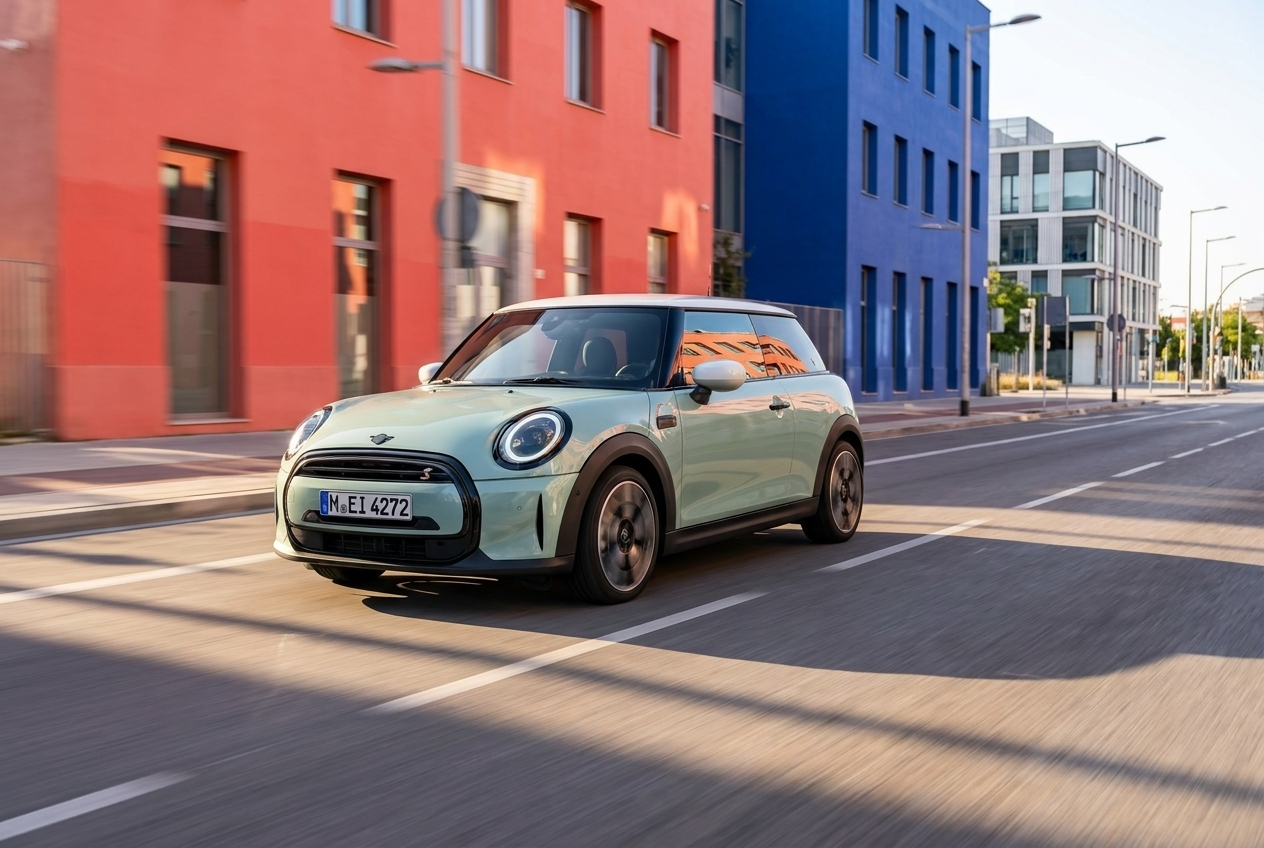
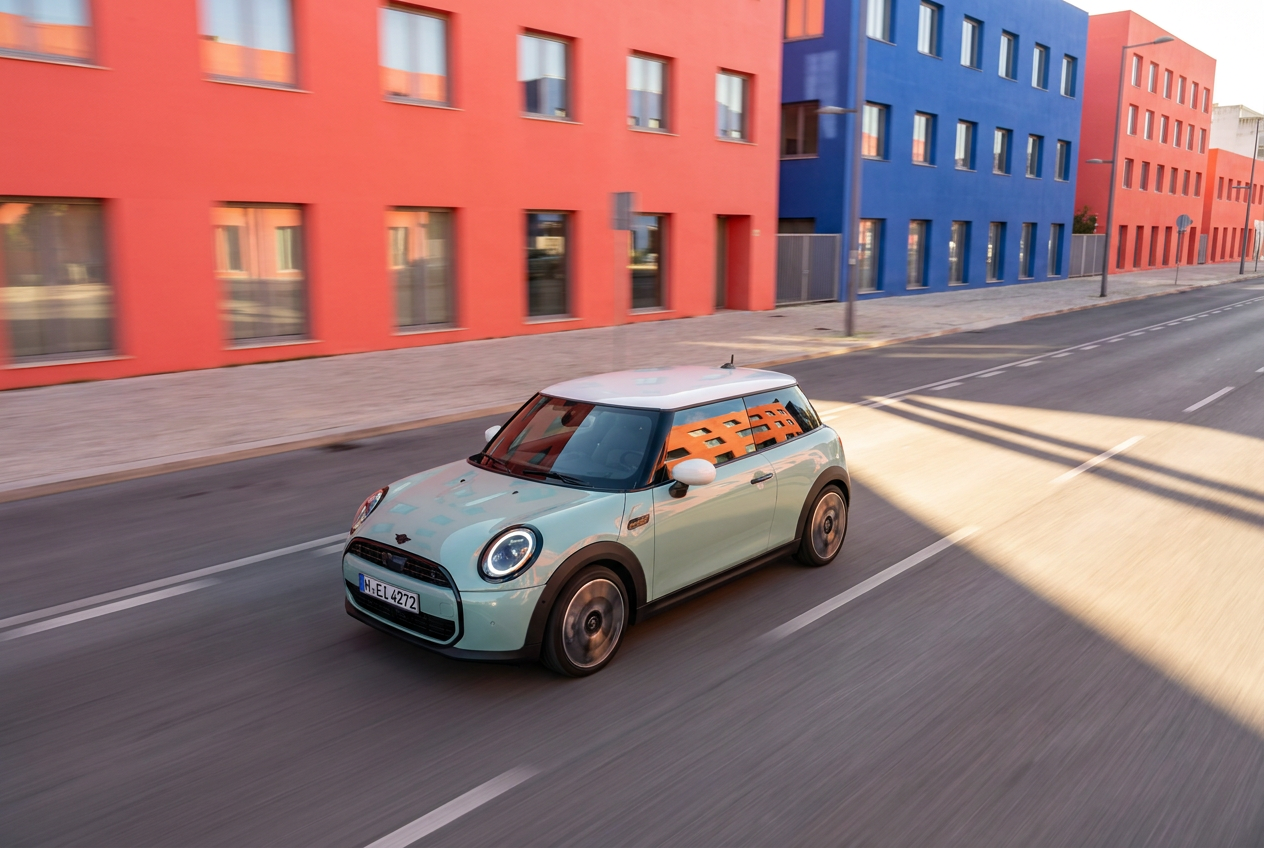
Minty Cruise: The MINI cruises through a wide urban intersection, coral red and cobalt blue buildings creating a strong color contrast against the mint body. Long afternoon shadows cut across the road. Motion blur on the wheels, elevated wide-angle perspective.
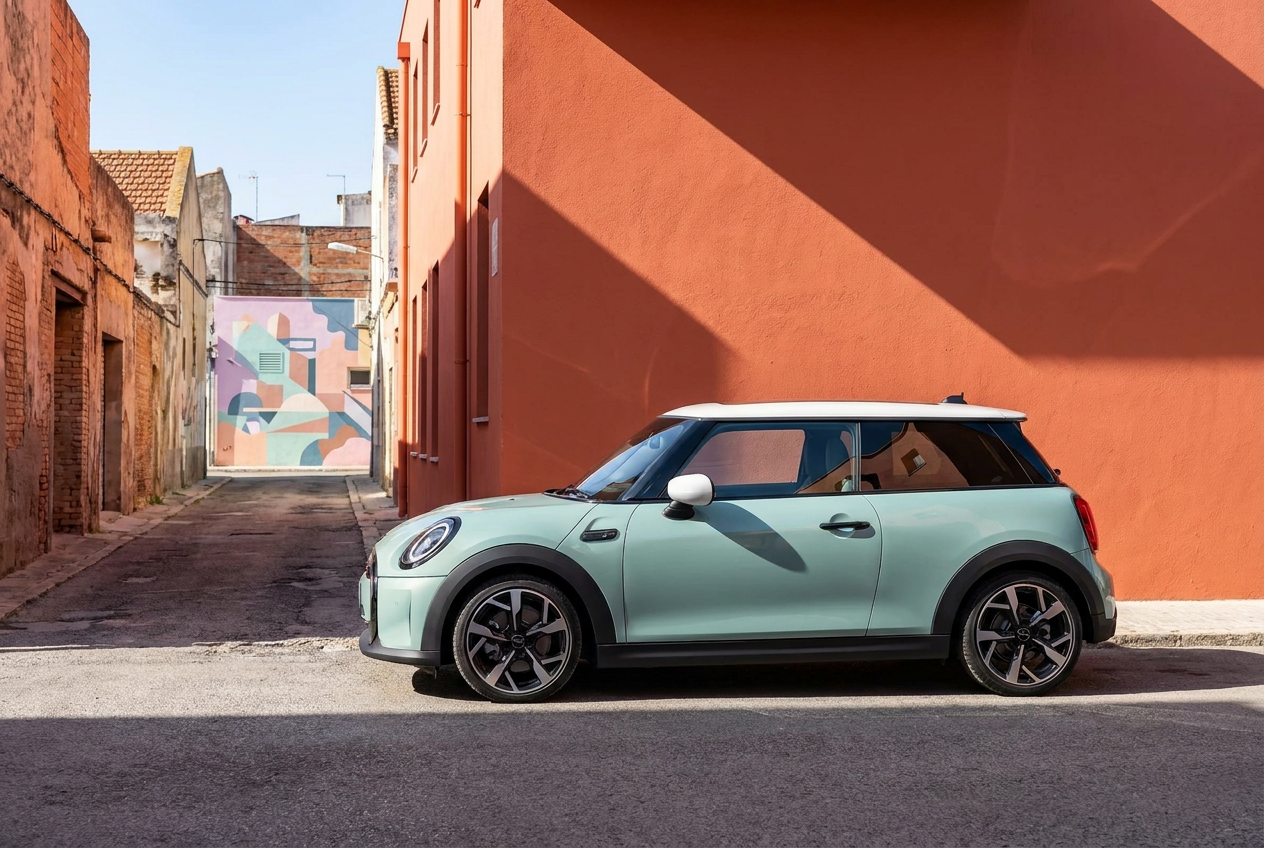
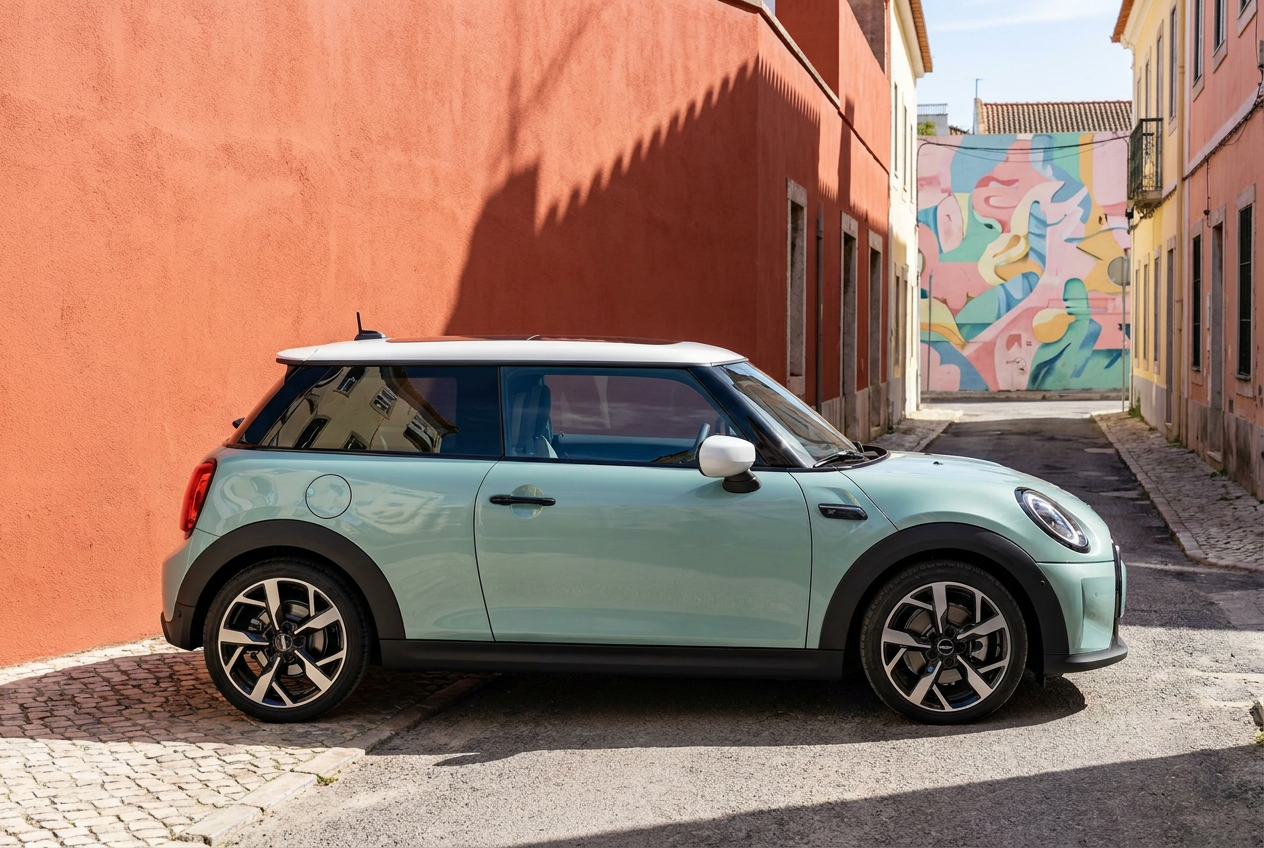
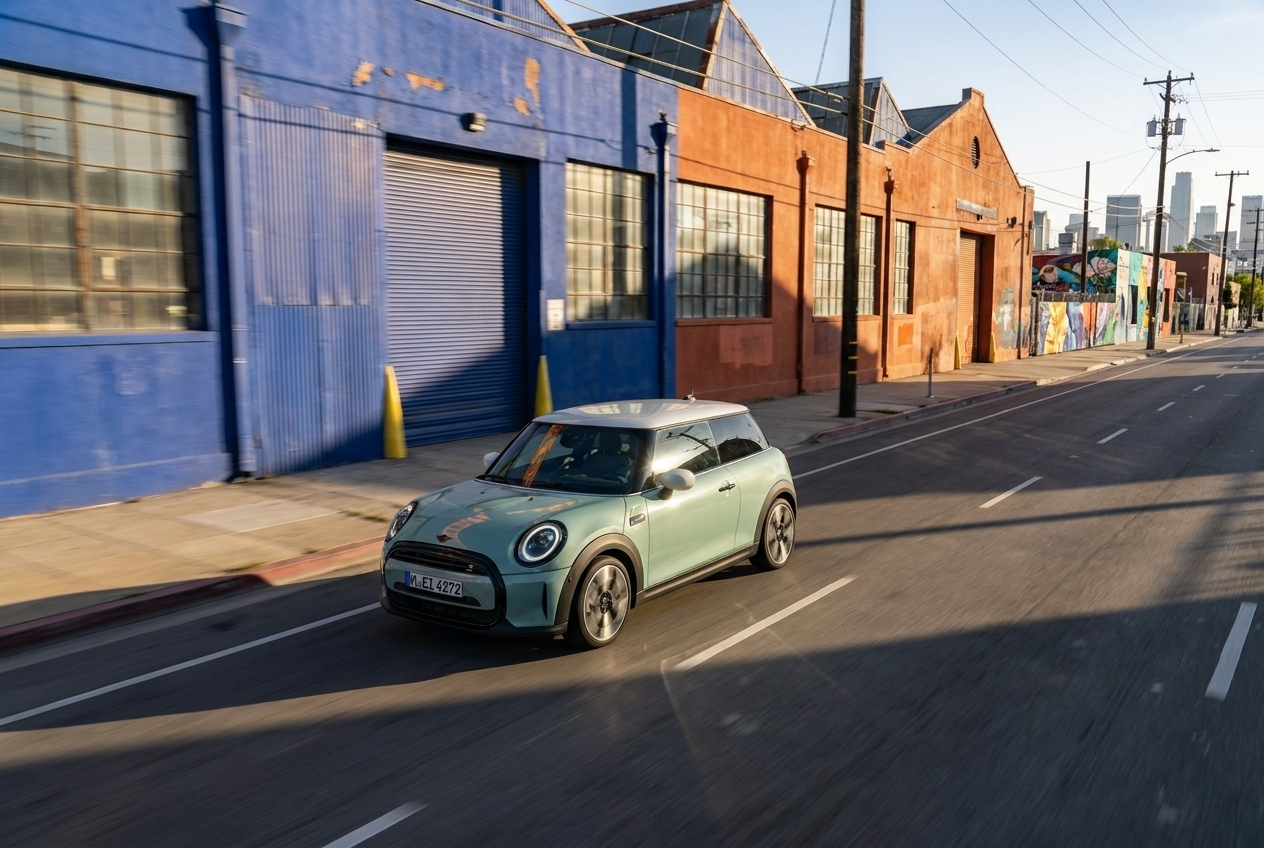
Terracotta Corner: Parked against a warm terracotta wall, a street mural visible in the background. Hard directional light creates a strong shadow on the facade. The mint body reads almost pastel against the orange-red wall.
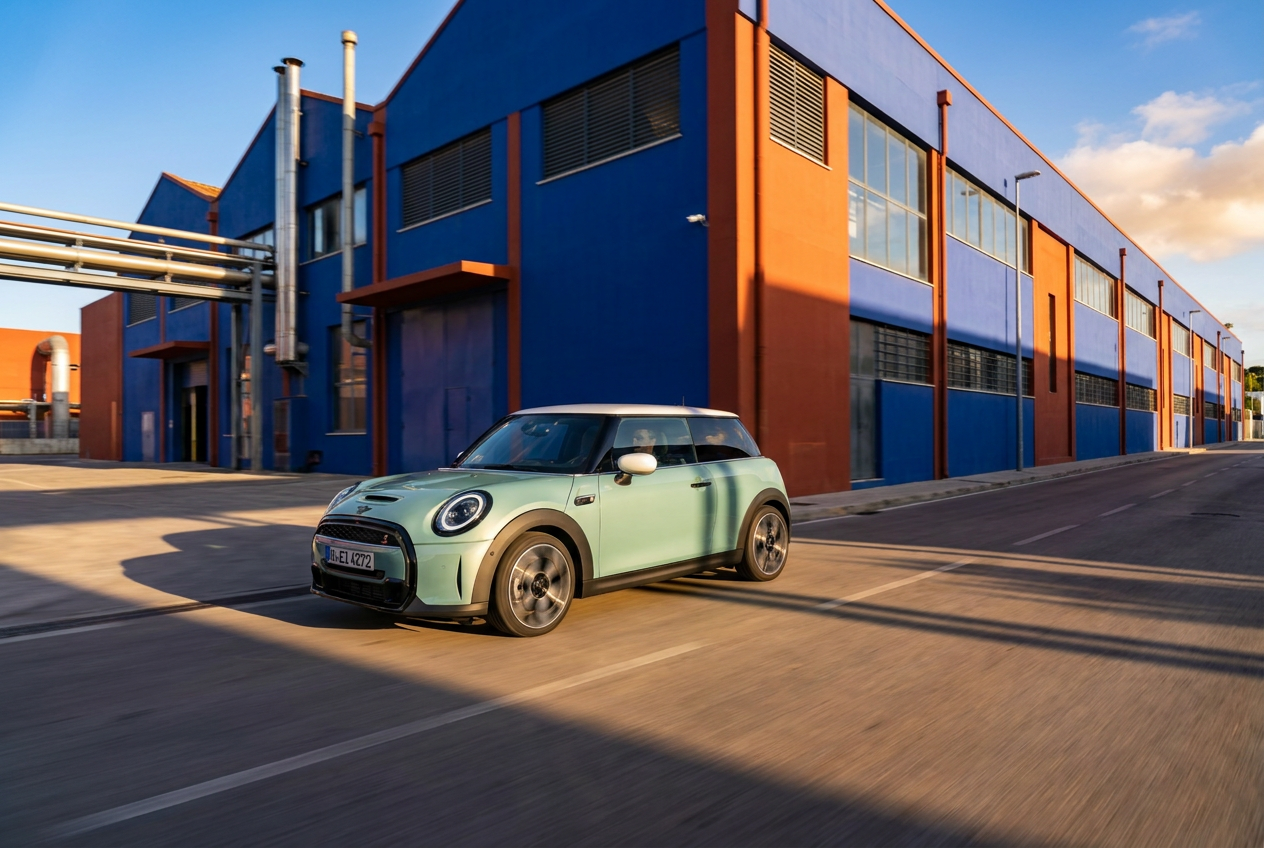
Industrial Hues: Driving past a row of warehouse buildings in deep cobalt blue and burnt orange. Warm evening light rakes across the facade. The MINI is small against the scale of the industrial buildings — the architecture does most of the color work.
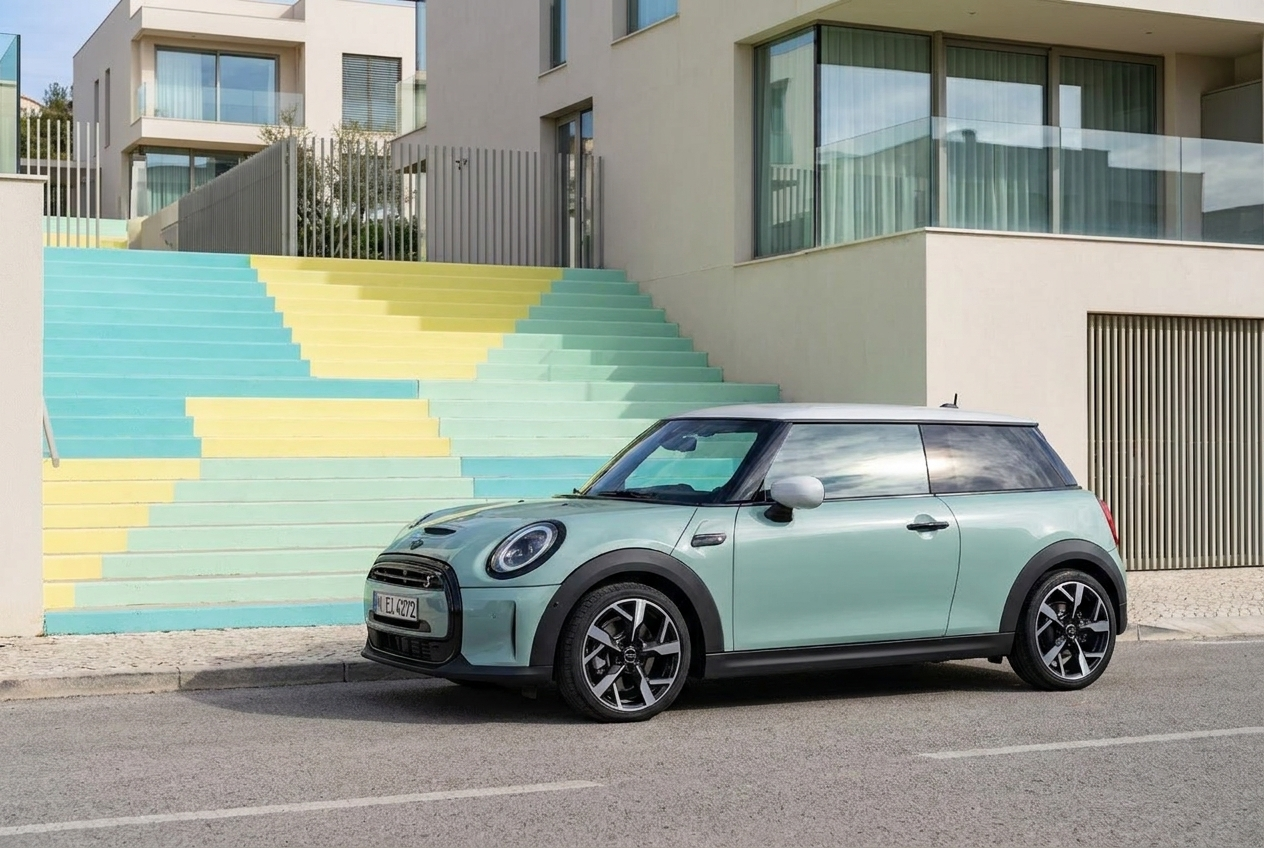
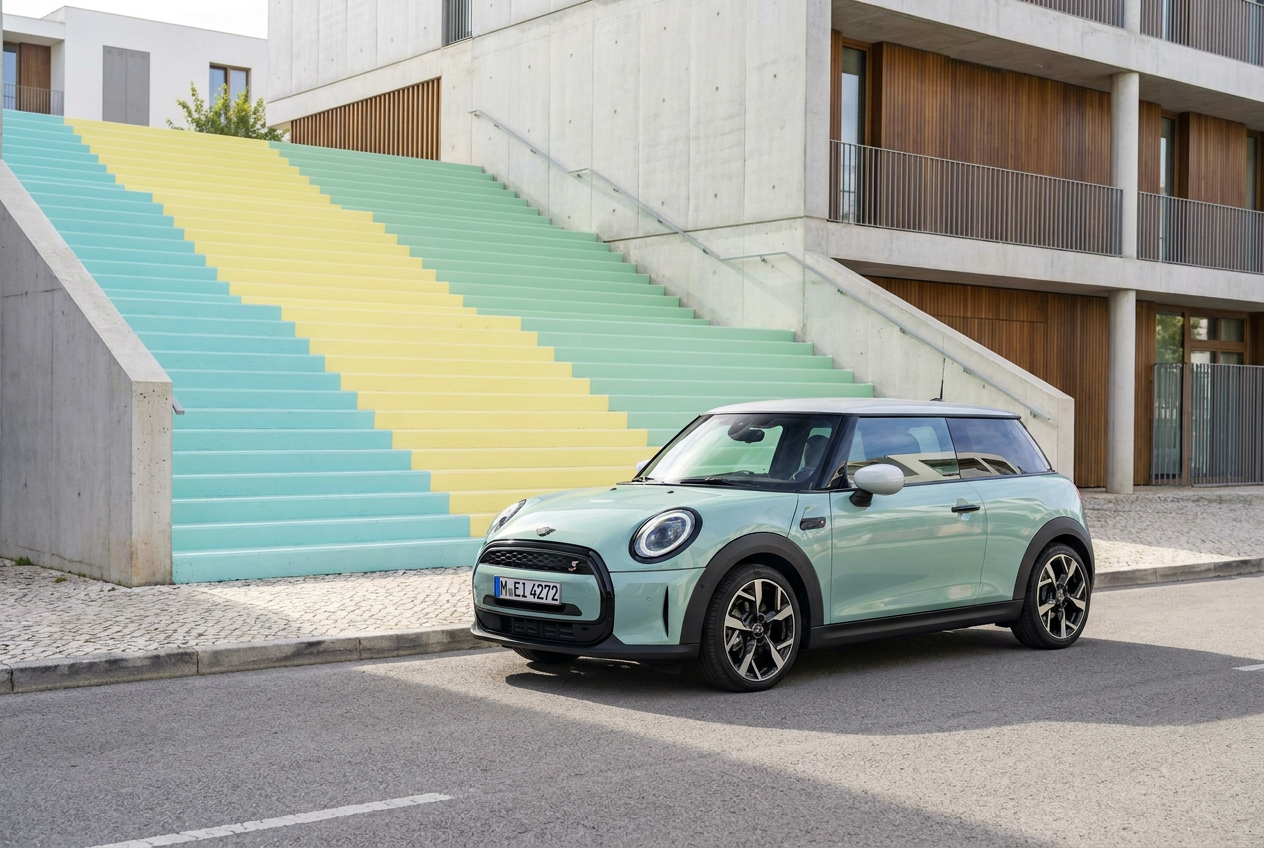
Pastel Staircase: Parked in front of a graphic staircase in turquoise, yellow, and mint. The color palette here mirrors the car itself, the environment and vehicle feel like they belong to the same design system.
Here is an example of the individual scene prompt that Create Concepts generates internally, one per scene, based on your input prompt:
"Our soft mint green MINI with a white roof is shown in a dynamic urban driving shot. It cruises down a wide, clean street lined with vibrant coral red and deep cobalt blue buildings. The late afternoon sun casts long, geometric shadows across the street, highlighting the car's movement. A slight motion blur is visible on the wheels and background, emphasizing speed. The camera is positioned at a low, wide-angle, giving an elevated viewpoint that captures the car parallel to the road against the colorful architecture. High contrast colors and clean reflections are prominent. The overall mood is optimistic and design-driven."
This is what happens under the hood for each of the 9 concepts. Your prompt becomes 9 individual shot descriptions, each one interpreted through a different environment from the MAGROUND archive.
What to Do With the Results
Once the 36 visuals are generated, the creative decision-making starts:
- Which scenes work best for the campaign?
- Which images are ready to use as-is for social media or pitch decks?
- Which directions should be refined further with Edit with AI?
Selected visuals can be upscaled up to 10K resolution, adjusted in composition, or used as environment foundations for CGI replacement, where the AI-generated car is removed and replaced with a production-accurate 3D model.
For a campaign like this MINI example, several of the scenes are immediately usable for Instagram, social ads, or internal presentations without any further refinement.
What Makes a Good Prompt
Based on this example, here's a quick summary of what works:
Be specific about color. "Colorful" is too vague. "Deep Cobalt Blue + Burnt Orange + Coral Red" gives the system something to work with.
Define the car's appearance explicitly. If you want consistency across all 9 scenes, describe it: body color, roof color, any distinctive details.
Mix driving and parked scenes. This gives variety in motion, energy, and composition across the 36 images.
Name real locations or city types. "Los Angeles Arts District" or "Lisbon backstreets" conveys more than "urban."
Use mood words precisely. "Effortless" and "design-driven" are different from "cool" and "stylish." The more precise, the more coherent the output.
Use an AI assistant to help write the prompt.
Upload your reference images, describe your idea in one sentence, and let the AI expand it. Then review, edit, and add your own specific details, color codes, location preferences, shot types you want included.
Try It Yourself
Create Concepts is available now on MAGROUND.com.
Upload your references, add your vehicle image, write your prompt, or generate one with an AI assistant, and explore a full campaign direction in minutes.
The MINI example above took one brief session from references to 36 generated visuals. The next example in this series will show the same process applied to a different brand, a different visual language, and a completely different prompt strategy.
Try Create Concepts on maground.com